How to Create a Coloring Book for KDP: 7 Simple Ste
How to Create a Coloring Book for KDP: 7 Simple Steps
Creating a coloring book for Amazon's Kindle Direct Publishing (KDP) is a cost-effective way to generate passive income. With tools like Coloring Book Engine and AI, you can skip expensive illustrators and design a professional book for under $10. The adult coloring book market generates over $300 million annually, with some books earning up to $15,000 per month. Here's a quick overview of the process:
- Choose a theme: Pick a niche that appeals to your audience (e.g., mandalas, animals, or seasonal designs).
- Set specifications: Decide on trim size (8.5" x 11" is standard), page count, and single-sided printing to prevent ink bleed.
- Use AI tools: Generate illustrations with AI, refine them for print, and arrange pages with blank backs.
- Design a cover: Use KDP's cover template and ensure the design aligns with your book's theme.
- Export print-ready files: Follow KDP's technical requirements for interiors and covers (300 DPI, proper bleed, etc.).
- Upload to KDP: Set up your account, add book details, and price your book between $8.99 and $12.99 for optimal sales.
- Publish: Submit your files, preview the book, and go live on Amazon in 24–72 hours.
This process lets you produce a professional coloring book in just a few days. With KDP's print-on-demand model, you avoid upfront inventory costs and earn up to 60% royalties per sale.
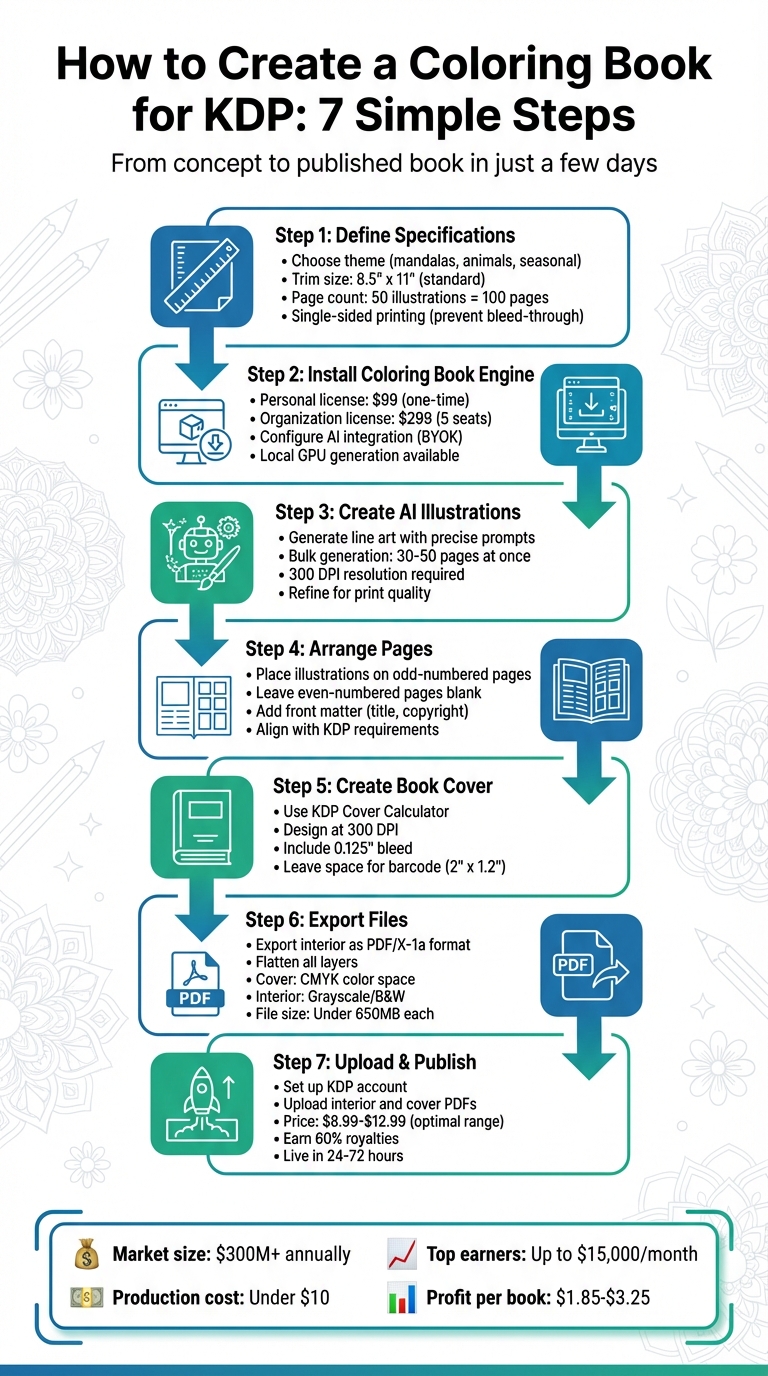
7 Steps to Create and Publish a KDP Coloring Book
How to Create and Publish a Coloring Book to Sell on Amazon KDP | Step-by-Step Tutorial (2026)
Step 1: Define Your Coloring Book Specifications
Before diving into the creative process, it’s important to outline the key details of your coloring book. These decisions will impact both your production costs and how well your book resonates with customers.
Choose a Theme and Identify Your Audience
Start by picking a theme that appeals to your target market. Timeless options like mandalas, animals, floral designs, and geometric patterns tend to perform well year-round, making them safe bets. If you want to stand out, consider trending themes such as mindfulness designs, fantasy creatures like dragons, or even edgy options like swear word coloring books. For something different, you could explore niches like vintage styles, medical anatomy drawings, or culturally inspired patterns.
The complexity of your illustrations should align with your audience. For kids, focus on simple, bold designs with large open spaces and fewer pages. Adults, on the other hand, often seek intricate patterns that offer both a challenge and a calming experience. A balanced approach might involve including 30% easy designs for quick wins, 50% intermediate designs to appeal to most users, and 20% advanced designs for seasoned colorists looking for a challenge.
To gauge demand, use Amazon’s search bar to discover popular keywords and check the Best Sellers Rank (BSR) of top-performing books to estimate their daily sales. Sponsored product listings can also provide insights into themes that publishers are actively promoting, helping you identify profitable gaps in the market.
Once your theme is locked in, you can refine other details like the book’s size and printing style.
Decide on Trim Size and Page Count
For a classic coloring book feel, an 8.5" x 11" trim size is a popular choice - it offers plenty of space for detailed designs and appeals to most customers. Other options include 8" x 10" for a more premium vibe or 8.5" x 8.5" for square designs like mandalas.
If your book includes 50 illustrations, placing each on a right-hand page with a blank left-hand page behind it will result in a 100-page book. A black-and-white 100-page book at 8.5" x 11" typically costs around $2.95 to print and can retail for $8.99–$12.99. This setup allows for a profit margin of approximately $1.85–$3.25 per book. This format not only enhances usability for colorists but also supports a pricing model that works.
Opt for Single-Sided Printing
Single-sided printing is now the preferred standard for coloring books. It prevents ink from bleeding through when users work with markers, gel pens, or other high-saturation tools. Ben Robertson, author of ColorBliss, recommends placing coloring pages on the right-hand (odd-numbered) pages and leaving the left-hand (even-numbered) pages blank to avoid bleed-through issues.
When setting up your book for Kindle Direct Publishing (KDP), always choose white paper over cream. White paper ensures vibrant colors, while cream paper can dull the appearance of pencils and markers.
Step 2: Install and Configure Coloring Book Engine
Once you've outlined your coloring book's specifications, it's time to bring your vision to life using Coloring Book Engine. This standalone desktop application is designed specifically for creating professional-quality coloring books. It handles everything from processing artwork to composing pages and exporting files ready for Kindle Direct Publishing (KDP).
Download and Activate Your License
Coloring Book Engine offers two licensing options, tailored to fit different needs:
- The Personal license is a one-time payment of $99. It provides lifetime access, allows activation on up to three devices, and is perfect for individual creators.
- The Organization license costs $299 and includes up to five licensed seats, making it ideal for teams or those managing multiple projects.
Both options include commercial use rights and free updates, so there are no ongoing subscription fees to worry about.
Once you've purchased a license, download the installer for your operating system. Activate your license key on your primary device, and if needed, use the additional activations (up to your license limit) through your account. The activation process is simple and managed through your account dashboard.
Configure BYOK AI Integration
To unlock AI-powered illustration features, connect your API keys (BYOK stands for Bring Your Own Key). Once connected, you can customize parameters such as content descriptions, line art quality (e.g., "clean line art"), and the level of detail to suit your target audience. The software even includes pre-set styles inspired by Amazon's trends, helping you maintain a consistent look throughout your book.
For those who value privacy or want to avoid external API expenses, Coloring Book Engine supports local image generation using your computer's GPU. This means all AI processing happens directly on your machine, eliminating the need to send data to third-party services. If you're working on a larger project, you can take advantage of advanced features like bulk generation, which allows you to create up to 50 pages at once by entering multiple prompts. This can significantly speed up production for bigger books.
Once you've configured the AI integration, you'll be ready to generate illustrations in the next step!
Step 3: Create Illustrations with AI
Generate Line Art with AI
Your Coloring Book Engine is ready - time to bring your illustrations to life. The key to high-quality line art lies in crafting precise prompts. A solid formula includes technical details, art style, subject focus, composition guidelines, complexity level, line quality, and any specific background or exclusion elements.
For adult coloring books, prompts like "detailed and intricate line art" work well. For children's books, aim for "bold outlines and simple shapes." Always specify a resolution of 300 DPI and an 8.5″ x 11″ aspect ratio to meet KDP's formatting requirements.
The bulk generation feature is a game-changer. By entering multiple prompts, you can create 30–50 pages at once, saving hours while maintaining a consistent style across your book. For instance, entrepreneur Kalpesh Ghelani managed to create a 50-page book in just two hours using batch generation, which went on to generate impressive revenue over 90 days.
Once you’ve generated your initial images, the next step is refining them to ensure they meet professional print standards.
Refine AI-Generated Images
After creating your bulk illustrations, it's time to polish them for print. If your images include unwanted color or shading, tweak your prompts to include phrases like "monochrome line art ONLY" or "black and white solid black line art." You can also add negative prompts to remove elements like shading, grayscale, stray dots, halftones, or background noise.
Carefully inspect each page at full scale to spot stray pixels, broken lines, or other artifacts. Enhance contrast to ensure line thickness is at least 2 pixels wide for clean printing. Generating 40–60 pages for a 30-page book gives you the flexibility to discard any images with noticeable flaws or inconsistent styles.
Before finalizing, use a palette-matching preview to check the line quality one last time. Once your pages are polished and cohesive, you’re ready to arrange them for export.
Step 4: Arrange Pages in Coloring Book Engine
Position Illustrations and Add Blank Pages
Once your illustrations are ready, it's time to arrange your pages. In your project workspace, place your finalized line art on the right-hand, odd-numbered pages. This single-sided layout helps prevent marker or ink from bleeding through to the next page.
Keep the left-hand, even-numbered pages blank for the same reason. KDP allows up to 4 blank pages in the middle of the book and up to 10 blank pages at the end.
Don't forget to include essential front matter, such as the title page, copyright page with your ISBN, and a "This book belongs to" page. For the back matter, you can add credits or even a promotional sample page. Most coloring books include 50 to 100 coloring pages, meaning the total page count (with blank backs) will range from 100 to 200 pages.
Once your pages are arranged, ensure the layout aligns with KDP's printing standards.
Align with KDP Requirements
For an 8.5 x 11-inch coloring book, set your document size to 8.625 x 11.25 inches. This accounts for the 0.125-inch bleed required by KDP. To avoid any part of your illustrations being trimmed off during binding, make sure all critical line art stays at least 0.25 inches from the trim edges and 0.5 inches from the gutter (the inner spine area).
Check that all lines in your artwork are pure black (#000000) and maintain a width of 2 to 4 pixels. Flatten the image layers to remove any transparencies and ensure the preview matches the final product. When setting up your KDP options, choose the black-and-white interior and white paper. White paper is ideal since it keeps colored pencils and markers vibrant, unlike cream paper, which can dull the colors.
sbb-itb-c02bfb4
Step 5: Create Your Book Cover
Once your interior pages are finalized, it’s time to design a cover that fits KDP’s specific requirements.
Export KDP Cover Template
Before diving into cover design, make sure your interior manuscript is complete. Why? The spine width depends entirely on your final page count. To get started, use the KDP Cover Calculator to generate a template with precise measurements. For example, if your coloring book is 8.5 x 11 inches, printed on white paper with a black-and-white interior, the calculator will automatically include the necessary 0.125-inch bleed on all sides. Keep in mind that KDP requires a minimum of 80 pages to include spine text. Once you’ve got your template, you’re ready to create a cover that fits perfectly.
Design a 300 DPI Cover
To meet KDP’s quality standards, set your cover resolution to 300 DPI. Avoid stretching low-resolution images, as this can result in pixelation and a less professional look. Make sure your cover design complements the style of your interior pages - this consistency helps ensure customer satisfaction. Keep all important text and visuals at least 0.25 inches away from the edges, and leave space on the lower right corner of the back cover for a 2 x 1.2-inch barcode. When you’re done, flatten all design layers, export the file as a PDF, and you’re good to go!
Step 6: Export Files for KDP
With your interior pages finalized and your cover ready, the next step is exporting your files in a format that works with Kindle Direct Publishing (KDP).
Create Print-Ready PDFs
Before exporting, make sure to flatten all layers in your files. Coloring Book Engine simplifies this process by allowing you to export your interior as a single PDF at 300 DPI. Stick to a single-sided layout to avoid ink bleeding through the pages.
For the best results, disable compression to maintain the 300 DPI quality. Export your interior file in PDF/X-1a format, which is ideal for printing.
"Images that contain 300 DPI produce the best print quality. As the DPI increases, so does the resolution and print quality." - Amazon KDP
For your cover, export it as a single wraparound PDF that includes the back cover, spine, and front cover in one file. Use the CMYK color space for the cover to ensure accurate color reproduction, while the interior should remain in grayscale or black and white. Make sure to embed all fonts in the PDF to prevent any text issues during KDP's review process.
Once your PDFs are exported, it's time to validate the files.
Check File Specifications
Double-check that your exported files meet all KDP guidelines. Pay special attention to bleed and margin settings to ensure they align with KDP's requirements. Keep file sizes manageable - your interior and cover files should each be under 650MB. Smaller file sizes, such as 40MB or less for covers, will upload and process faster.
Additionally, ensure your PDFs are not locked or password-protected, as KDP will reject encrypted files. Remove any unnecessary elements like printer marks, crop marks, or comments from your export. These small adjustments can prevent delays and help your files pass KDP's review smoothly.
Step 7: Upload and Publish on KDP
Now that your print-ready PDFs are finalized, it’s time to publish your coloring book on Amazon’s Kindle Direct Publishing (KDP) platform. Here’s how to get it done.
Set Up Your KDP Account and Book Listing
Start by logging into your KDP account at kdp.amazon.com. If you’re new to KDP, you’ll need to provide your legal name, address, tax details, and bank information to set up royalty payments. Once logged in, click on “+ Create” and select “Paperback” from the Bookshelf to begin.
When filling out your book details, make sure your title and subtitle match exactly what’s on your book cover to avoid any linking issues. Enter your author name or pen name, and write a description that grabs attention. Highlight key details like the book’s theme, the number of designs, and who it’s meant for. You’ll also need to choose up to seven keywords (e.g., “stress relief,” “mandala coloring”) to help people find your book, and select two categories to boost its visibility. This setup ensures your book is ready for publishing.
For the print options, select “Black & White interior with white paper” and choose a trim size - 8.5" x 11" is the standard for coloring books. Make sure these options align with your prepared files. If your designs don’t extend to the page edges, select “No Bleed.” Also, go for a matte cover finish, which is generally preferred for coloring books. You can use a free KDP-assigned ISBN or skip it altogether since coloring books are considered low-content books.
Upload Files and Preview Your Book
In the "Paperback Content" tab, upload your interior PDF and your full wraparound cover PDF. Once uploaded, use KDP’s previewer to check the layout. This tool helps you confirm that formatting, margins, and resolution are all correct. Pay attention to the white dotted line (indicating where the book will be trimmed) and the red dotted line (marking the margins). All text and designs should stay within these boundaries.
If warning triangles appear, review them carefully. Some are just informational, like low DPI alerts, but issues like incorrect margins or placeholder text will need to be fixed before publishing. If your book has a spine (for books with 80–130 pages), ensure the spine text is at least 7pt to avoid removal by KDP.
Although not mandatory, ordering a physical proof copy is a smart move. It allows you to check the paper quality and make sure your designs look as expected before your book is available for purchase.
Publish Your Book
If your book includes AI-generated content, disclose it as required by KDP. For distribution, select “All Territories” to make your book available worldwide.
Set your list price between $8.99 and $12.99 - this range is popular for coloring books. Using .99 endings can also help boost sales. KDP will calculate the printing cost, and you’ll earn 60% royalties on the list price minus that cost. Once everything is set, click “Publish Your Paperback Book.” KDP’s review process usually takes 24 to 72 hours before your book goes live on Amazon.
"KDP gives you control over your book's content, design, price, audience, and advertising." - Kindle Direct Publishing
Conclusion
Publishing a coloring book on Amazon's KDP platform is both straightforward and cost-effective. By following a clear process - setting your specifications, using Coloring Book Engine to create illustrations, organizing your pages, designing a cover, exporting print-ready files, and uploading to KDP - you can turn your idea into a published book in just a few days. Coloring Book Engine simplifies the technical aspects, allowing you to focus on choosing a niche and planning your marketing strategy.
As Billie Lucas points out:
"AI speeds up bulk page generation, but crisp, consistent line art and careful layout planning make printable books sellable."
The financial barrier to entry is low. With AI tools keeping production costs under $10 and KDP's print-on-demand model eliminating inventory expenses, you can start earning royalties without a big upfront investment. Pricing your book between $8.99 and $12.99 is a sweet spot, with a $9.99 book typically bringing in around $3.15 in profit per sale after printing costs.
Whether you're aiming to create a new stream of passive income or simply want to express your creativity, there’s no better time to get started. With Coloring Book Engine’s Personal license ($99 one-time) for individual creators or Organization license ($299) for teams, you gain lifetime access and full commercial rights to begin publishing immediately. And with KDP’s review process taking just 24 to 72 hours, your book could be live on Amazon in less than a week.
FAQs
How can I pick a profitable theme for my coloring book on KDP?
To pick a profitable theme for your coloring book, start with market research. Head over to Amazon and explore the best-selling categories for coloring books. Pay attention to recurring popular topics. For kids, themes like animals tend to be consistent favorites. For adults, timeless options like mandalas, floral patterns, inspirational quotes, and geometric designs often perform well. Additionally, trending themes such as mindfulness or humor can tap into short-term opportunities.
Once you have a theme in mind, validate your idea by evaluating the competition. Search Amazon for similar books in your niche and examine their Best Seller Rank (BSR), number of reviews, and pricing (most coloring books fall within the $6.99–$12.99 range). A low BSR (under 30,000) signals strong demand, while niches with fewer reviews and higher BSRs might offer a chance to stand out. If the competition feels stiff, consider adding a unique angle - like a seasonal spin or minimalist design - to make your book more distinctive.
Lastly, align the theme with your strengths or available resources. Picking a theme that plays to your skills - or that you can produce efficiently with tools like AI - can help you keep production costs low while creating a book that’s both appealing and profitable.
What technical requirements should I follow to publish a coloring book on KDP?
To publish a coloring book on KDP, you'll need to ensure your files meet their specific technical standards. Start with your interior file - it must be in PDF format and have a resolution of at least 300 DPI to guarantee sharp, high-quality images. The page size should align with your selected trim dimensions, such as 8.5 x 11 inches, and include bleed settings if your illustrations reach the page edges.
For the cover, you'll need a separate PDF that combines the front cover, back cover, and spine in one file. The dimensions of this file will depend on your book's total page count, so be sure to calculate it accurately. If your coloring book is in black and white, optimize all files for grayscale printing to avoid any unexpected issues. By carefully preparing your files, you’ll set yourself up for a smooth publishing process on KDP.
How can AI tools simplify creating illustrations for a coloring book on KDP?
AI tools have made it simpler than ever to create detailed line art, even if you’re not a skilled artist. By using clear and specific prompts like “a detailed forest scene with pine trees, a winding path, and mushrooms,” these tools can generate sharp, printable illustrations tailored to KDP (Kindle Direct Publishing) specifications. Many platforms also allow you to tweak contrast and line thickness, ensuring the designs print clearly and are easy to color.
Another big advantage is speed. With just one prompt, you can produce dozens of designs in a consistent style, cutting down on the time and effort needed to create multiple pages. Plus, some tools handle formatting tasks like adding margins, bleed, and assembling files that are ready for KDP. This means you can focus more on the creative aspects while reducing manual mistakes. In short, AI simplifies the entire process, making it quicker and easier to publish polished, professional coloring books.
Related documentation
- Build the first project with the first-project guide.
- Finish with the KDP upload guide.