Desktop vs Cloud Software: Best for Coloring Book Creators
Desktop vs Cloud Software: Best for Coloring Book Creators
Choosing between AI vs traditional coloring book creation methods like desktop and cloud software depends on your workflow, budget, and technical needs. Here's a quick breakdown:
- Desktop Software: Offers complete control, offline functionality, and advanced tools for detailed designs. However, it requires high-end hardware and can be expensive upfront.
- Cloud Software: Affordable, accessible from anywhere, and great for quick, AI-powered page generation. It relies on an internet connection and has fewer customization options.
Key Takeaways:
- Performance: Desktop tools like Photoshop excel in intricate designs, while cloud platforms like ColorBliss generate pages faster using AI.
- Cost: Desktop tools often have one-time fees but require costly hardware. Cloud tools use monthly subscriptions, starting at $10–$30.
- File Management: Desktop ensures full ownership of files, while cloud platforms store files remotely.
- KDP Integration: Both options meet Amazon KDP standards, but cloud tools simplify setup with built-in templates.
If you're focused on precision and offline access, desktop software is the way to go. For speed and convenience, cloud tools are ideal. Many creators combine both for the best results.
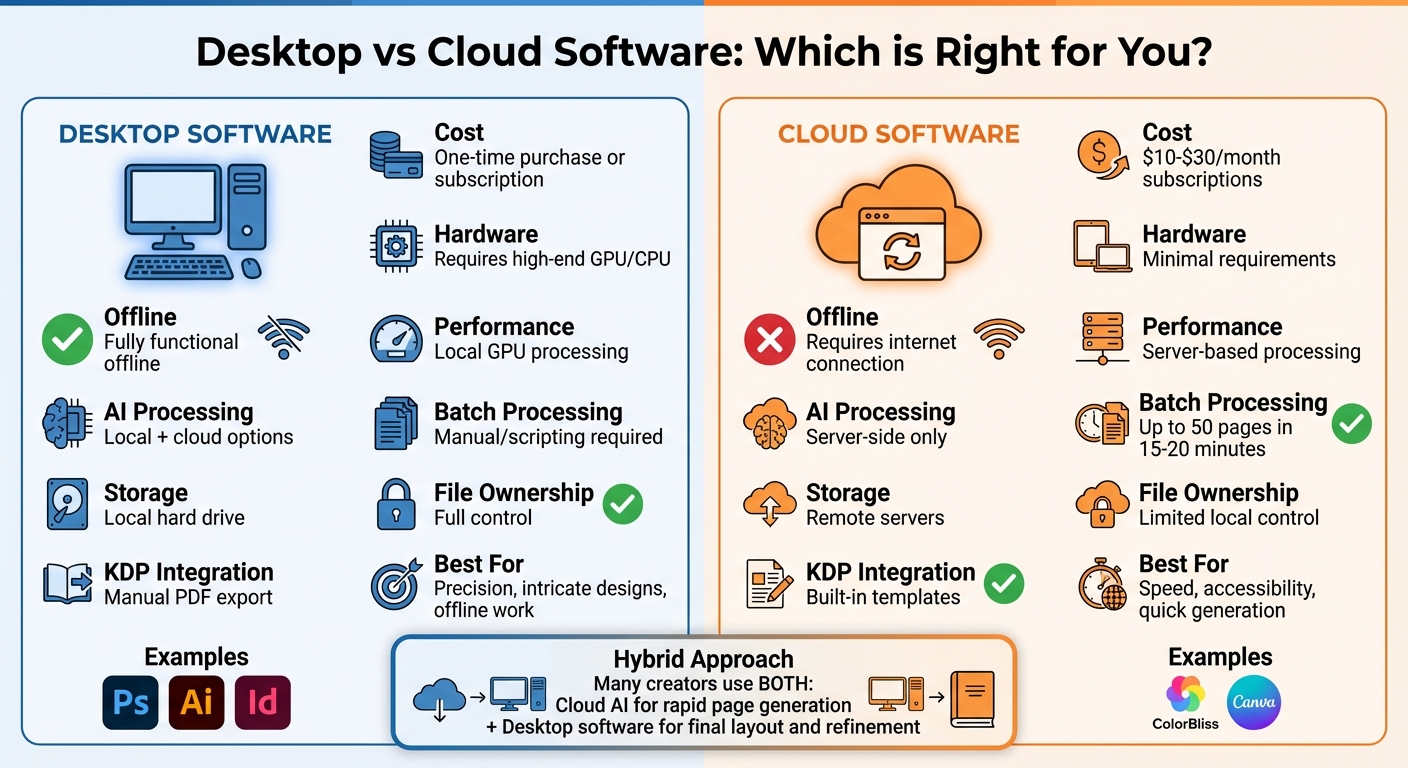
Desktop vs Cloud Software Comparison for Coloring Book Creators
Desktop vs Cloud Software: Core Differences
How Each Type Works
Your choice between desktop and cloud software significantly impacts how efficiently you can handle workflows and projects. Desktop software, such as Adobe Photoshop or Stable Diffusion, operates directly on your computer, utilizing its CPU, GPU, and RAM. To get the best performance, make sure your GPU is compatible and that you have enough scratch disk space for smooth operation.
On the other hand, cloud platforms like ColorBliss or Canva run entirely in your browser, relying on remote servers to handle tasks. This means there's no need to install anything on your computer, but you'll need a stable internet connection for everything - from generating images to saving your files.
"Cloud documents are Adobe's new cloud-native document file type that is optimized for a seamless online or offline work experience across devices".
One key difference: desktop software allows you to work offline, while cloud platforms require an internet connection. While desktop tools are ideal for uninterrupted offline work, cloud platforms let you move effortlessly between devices, provided you have a reliable internet connection. These differences play a big role in how you manage both your projects and your files.
Project Scale and File Management
The platform you choose also determines how well you can manage large projects and organize files. For instance, if you're creating a 30- to 50-page coloring book for KDP, file management becomes a top priority. Cloud-based tools can generate up to 50 themed coloring pages in just 15 to 20 minutes, making them great for quickly testing niche ideas or building a portfolio.
Desktop software, however, shines when handling more intricate, multi-page layouts. Programs like Adobe InDesign are designed for tasks like setting margins, managing bleed areas, and exporting the PDF/X-1a files required by KDP. Ensuring your files meet print-ready resolution standards is critical for high-quality physical books. By keeping files stored locally, desktop tools offer better control over file organization and avoid the limitations of cloud storage. A hybrid approach - using cloud AI for rapid page creation and desktop software for layout and final touches - can provide the best of both worlds.
sbb-itb-c02bfb4
Performance and AI Processing
Local GPU vs Server Processing
How your computer handles tasks depends on whether you're using desktop software or cloud-based tools. For instance, desktop applications like Adobe Photoshop rely on your local GPU to accelerate tasks like applying filters or effects - think sharpening or blurring images. But don't expect a massive leap in speed every time. According to Puget Systems, even an entry-level dedicated GPU can nearly double the speed of GPU-accelerated tasks compared to onboard graphics. However, when you move to high-end GPUs, the performance gap narrows. For example, a mid-range RTX 5070 performs within 1% of the high-end RTX 5090 for most Photoshop tasks.
Cloud-based AI tools, on the other hand, take a different route. Features like Adobe Generative Fill and Firefly rely on remote servers because they need access to massive datasets and computational power far beyond what a typical desktop setup can provide. As Trevor Dennis, an Adobe Community Expert, puts it:
"Generative Fill, and Firefly, both operate on Adobe's servers as the Ai uses a vast store of stock images to build and add to your image, so there is no choice. You have to be online to use them".
For creators working on coloring books, this distinction matters. Local GPUs shine in tasks like brushwork, transformations, and adding effects to existing designs. But when it comes to generating entirely new pages from text prompts, you'll need the cloud, no matter how powerful your desktop hardware might be. Local processing offers dependable, offline functionality, while server-based AI tools open up capabilities that desktop systems simply can't match. These differences play a crucial role in how each method handles large-scale projects.
Batch Processing Large Projects
When you're producing dozens of coloring pages for your KDP projects, the contrast between desktop and cloud solutions becomes even clearer. Cloud platforms built for bulk generation can churn out up to 50 high-resolution coloring pages in just 15 to 20 minutes. Ben Robertson from ColorBliss highlights the advantage:
"the bulk generation feature... is a game-changer for creating comprehensive coloring books efficiently".
This server-side efficiency allows multiple prompts to be processed at once, making it perfect for testing niche concepts or assembling an entire book quickly. This efficiency is central to a streamlined publishing workflow.
Meanwhile, desktop tools rely on actions and batch commands to automate tasks like resizing images, tweaking contrast, or applying filters across multiple files. However, your speed is tied directly to your local hardware. For high-resolution work at 300 DPI (the standard for KDP print quality), you'll need at least 32GB of RAM to handle files that can balloon to 500MB or even 1GB when opened. While desktop batch processing is excellent for refining and editing existing files, it can't compete with the speed and scalability of cloud platforms when you're generating entirely new content.
Cost Comparison
One-Time Purchase vs Monthly Subscriptions
When weighing your options, it's important to think about how subscription fees and hidden costs affect your budget in the long run. Desktop tools typically involve a one-time purchase, while cloud-based tools rely on monthly subscriptions. For example, an Adobe Creative Cloud All Apps subscription costs $54.99 per month when billed annually, which comes to $599.88 per year - or nearly $1,200 over two years. On the other hand, desktop tools like Vellum charge a one-time fee of $199.99, and Atticus is priced at $147 upfront, with no recurring costs.
If you're only looking at Photoshop, a single subscription costs about $22.99 per month, or $275.88 per year. Over time, these recurring costs can easily surpass the one-time fees of desktop tools. For creators working with tight profit margins on platforms like KDP, where royalties are typically capped at 70% of sales, controlling expenses is critical. Subscriptions can be a great way to start with lower initial costs, but one-time purchases provide a more predictable expense once you're committed.
Cloud-based subscriptions often come with added perks, like 100GB to 1TB of cloud storage and access to over 20,000 fonts. However, Adobe’s cancellation policy is strict: if you cancel after 14 days, you're still responsible for the full annual fee. It's also worth noting that base subscription prices don't always reflect the full cost, as extra fees can quickly add up.
Additional Fees and Usage Charges
Cloud platforms often come with expenses beyond the standard subscription price. For instance, Adobe's AI features operate on a credit system - standard plans include 25 credits per month, while professional plans offer 4,000 credits. If you use up your credits, processing slows down unless you purchase more. Adobe Stock adds another potential cost of $29.99 per month for 10 standard assets, and the AI Assistant for Acrobat is an additional $4.99 per month.
Storage limitations can also lead to extra charges. Adobe’s base Photoshop plan includes 100GB of storage for $22.99 per month, while its Photography plan, which offers 1TB, costs $19.99 monthly. Desktop tools avoid these ongoing fees by relying on local storage. Canva, for instance, offers 5GB of storage on its free plan, scaling up to 1TB for enterprise users. Keep in mind, advertised prices often exclude taxes, which are added at checkout.
For coloring book creators on KDP, managing expenses is key to maximizing royalties. Understanding these pricing structures allows you to make informed decisions and stick to a budget that works for your business.
Access, Collaboration, and Workflow
Working Offline vs Online
Desktop applications like Photoshop and Illustrator let you work entirely offline once installed. You can save your projects directly to your computer and keep designing without needing an internet connection, sidestepping potential connectivity hiccups.
On the other hand, cloud-based tools rely on internet access to save your work in real-time and provide access to templates. Adobe offers a middle ground with its hybrid cloud documents, which allow offline editing and automatically sync changes when you're back online. To minimize data loss, the default autosave interval is set to every 5 minutes. If you're working remotely with unreliable internet, configuring desktop software to save files locally can help you avoid interruptions.
These connectivity differences also play a big role in how teams collaborate, something we’ll dive into next.
Team Collaboration Features
When it comes to teamwork, cloud platforms take a different approach than traditional desktop software. Adobe's cloud documents support asynchronous collaboration, allowing team members to work on shared files without running into version conflicts. You can invite collaborators using their Adobe ID, enabling them to edit directly in the app and eliminating the hassle of manual file sharing.
"Cloud documents proved to be over 2x faster than other methods... even on relatively slow internet connections and when working with large and complex documents."
Cloud platforms also simplify feedback with features like guest commenting, which streamlines input without requiring additional account setups. For larger projects, some cloud-based AI tools can generate up to 50 themed coloring pages in one go, potentially creating an entire book’s worth of content in just 15–20 minutes.
Collaboration is just one piece of the puzzle - let’s look at how these tools fit into the KDP publishing workflow.
KDP Publishing Integration
Desktop applications provide detailed control over KDP (Kindle Direct Publishing) standards. Tools like Photoshop allow you to fine-tune technical requirements, such as exporting to PDF/X-1a format and ensuring precise 300 DPI resolution. You can also configure bleed and safe-zone settings to meet KDP's specifications.
Cloud platforms like Canva and ColorBliss, however, make this process easier for creators who might not be as familiar with print standards. They offer built-in templates for popular KDP trim sizes (like 8.5" x 11") and automate bleed settings. For example, with Canva, you can set custom dimensions to 8.625" x 11.25" to account for bleed requirements. Both desktop and cloud tools meet KDP’s minimum requirements - 300 DPI for line quality and a 400MB cap on interior file uploads.
Choosing the right platform for KDP publishing depends on your project’s complexity and your comfort level with technical setups. Both approaches have their strengths, so it’s all about finding what works best for your workflow.
Data Privacy and File Ownership
Where Your Files Are Stored
When using desktop software, your coloring book files are saved directly to your computer's hard drive or an external storage device. This setup gives you complete ownership of your files. On the other hand, cloud-based platforms store your work on remote servers. This difference affects both how you access your files and the level of privacy they offer.
With local storage, you can manage your files using tools like Windows Explorer or macOS Finder. In contrast, cloud documents often don't show up in these familiar file browsers; instead, they are only accessible through the application's interface. As Conrad Chavez explains:
"Cloud Documents are fully stored in the cloud."
For Amazon KDP publishing, regardless of the software you use, your final PDF must be a local file. This means even if you're working in a cloud-based tool, you'll need to download your project in a standard format before submission.
Control Over Your Work
The differences in file storage also extend to how much control you have over your work. Desktop software allows you to fully manage your files, giving you direct control over data privacy and security. Matt Pacheco, Sr. Manager of Content Marketing at TierPoint, highlights this:
"Local storage... the user has more direct control over data privacy and security".
Cloud platforms, however, come with limitations that could affect long-term access to your files. For instance, Adobe discontinued its "Creative Cloud Synced files" service on February 1, 2024, which required users to migrate their data elsewhere. Conrad Chavez points out:
"A disadvantage of cloud-synced workflow features is that, unlike software installed locally, a feature you rely on can disappear at any time".
Another critical difference is file formats. Cloud platforms often rely on proprietary formats, while desktop software typically uses standard formats like PSD, PNG, or PDF. These standard formats ensure better compatibility and long-term accessibility. To protect your work, it's a good idea to download high-resolution files (300 DPI PNGs) and back them up locally. Additionally, desktop software often allows you to customize settings; for example, in Photoshop, you can set the "Default File Location" to "On your computer" to keep your files stored locally.
For creators working with Amazon KDP, maintaining control over file formats and storage is critical. By doing so, you ensure your projects meet publishing standards and avoid disruptions to your workflow.
Desktop vs Cloud: Side-by-Side Comparison
Comparison Table
Here’s a quick breakdown of the main differences between desktop and cloud software:
| Feature | Desktop Software | Cloud Software |
|---|---|---|
| Cost Structure | One-time purchase or monthly subscription | $9.99–$14.99/month; free tiers available |
| Hardware Requirements | Requires high-end hardware | Minimal requirements |
| Offline Capability | Fully functional offline after activation | Needs a continuous internet connection |
| Performance | Relies on local CPU/GPU power | Depends on provider’s servers and internet speed |
| AI Processing | Options for local and cloud-based processing | Exclusively server-side processing |
| Batch Processing | Manual or requires advanced scripting | Built-in bulk generation (up to 50 pages at once) |
| Data Storage | Local hard drive or external devices | Stored on remote servers (cloud-hosted) |
| File Ownership | Full control over local files | Limited control over local file access |
| KDP Integration | Manual PDF export required | Often includes KDP-ready export options |
Desktop software is all about giving you complete control and the ability to work offline, making it great for those who prefer independence. On the other hand, cloud platforms offer lower upfront costs and tools designed for speed, like batch processing and streamlined KDP integration. Choosing between them comes down to balancing control with efficiency based on your specific needs.
Conclusion: Which Option Fits Your Needs
Choosing the right software boils down to your workflow, budget, and priorities. If you're a solo creator on a tight budget, cloud platforms like Canva can be a smart pick. They don't require expensive hardware upgrades since they run online, and many offer free or low-cost subscription options, unlike desktop software that often comes with steep upfront costs.
For teams, the decision might hinge on collaboration needs. Cloud-based tools are fantastic for small, remote teams thanks to features like real-time editing and shared folders. On the other hand, professional illustrators or creators working on intricate designs might prefer desktop software for its precision and control over high-resolution files. If you're working on a project like publishing with KDP, cloud platforms can save time by quickly generating multiple pages, making them a great option for streamlining workflows.
Privacy is another factor to consider. Desktop software keeps your files stored locally, which appeals to creators who prioritize file ownership and security. Meanwhile, cloud platforms store files on remote servers, which may raise concerns for some. That said, cloud tools are unbeatable when it comes to accessibility - you can work from multiple devices without worrying about hardware limitations.
Ultimately, it’s about weighing your priorities. If cost and speed are top of mind, explore free cloud options. If you value control and offline access, desktop software might be the better choice. Many creators find success by combining both: using desktop tools for detailed artwork and cloud platforms for layouts or KDP preparation. This hybrid approach lets you leverage the strengths of each option to suit your needs.
FAQs
What are the key benefits of using desktop software for creating coloring books?
Desktop software delivers powerful performance and precision, making it perfect for crafting detailed coloring books. Because it runs directly on your computer, it can fully utilize your hardware - whether that's a fast processor, plenty of RAM, or GPU acceleration. This means you can handle high-resolution artwork, work with intricate layers, and preview changes in real time, all without needing an internet connection. Plus, the offline functionality ensures you can work anywhere, free from connectivity concerns.
Programs like Adobe Photoshop and InDesign offer professional-level tools for managing fonts, textures, line weights, and colors. They also support print-ready formats such as PDFs and high-resolution TIFFs, making it simple to produce polished designs ready for platforms like Amazon KDP.
Another major advantage of desktop software is the complete control it gives you over your projects and workflows. You can use plugins, AI-powered tools, or custom scripts to automate repetitive tasks, process multiple pages at once, and fine-tune every detail to match your vision. This level of flexibility streamlines the process and ensures your coloring book meets the highest standards.
How can cloud-based software make publishing coloring books on Amazon KDP easier?
Cloud-based software makes creating coloring books a breeze. You can handle everything - designing, editing, and formatting - right in your web browser. Many of these tools even let you export files in formats ready for Amazon KDP, cutting down on extra steps and saving you time.
Because it's all online, you can skip installing bulky desktop programs. This not only simplifies your workflow but also ensures your files are ready to upload to KDP in just a few clicks, making the process smooth and hassle-free.
What are the cost differences between desktop and cloud software for coloring book creators?
Desktop software, such as Adobe Photoshop, often comes with a hefty price tag and demands a powerful computer to run smoothly. For instance, Photoshop's Photography plan is priced at $19.99 per month (billed annually), while the full Creative Cloud suite costs $67.99 per month. On top of that, users might need to upgrade their hardware - like adding a high-end GPU or extra RAM - which can significantly increase upfront expenses.
In contrast, cloud-based tools are generally easier on the wallet. Platforms like Canva often include free tiers with basic functionality, while premium plans unlock more advanced features. These tools operate directly in a browser, meaning they don’t require expensive hardware - just a reliable internet connection and a standard computer. For creators working with tight budgets, cloud-based solutions are an attractive option. Meanwhile, desktop software remains the go-to for those who require more advanced tools and are ready to handle the higher costs.