Understanding KDP Trim Sizes and Bleed
Understanding KDP Trim Sizes and Bleed
Publishing on Amazon KDP requires precision with trim sizes (the final book dimensions) and bleed (extra space for edge-to-edge designs). Missteps can lead to printing issues or file rejections. Here's what you need to know:
- Trim Sizes: Popular formats include 6" x 9" for trade paperbacks and 8.5" x 11" for coloring books. Larger sizes increase printing costs but provide more design space.
- Bleed: Adds 0.125" to each page edge for full-page designs. For example, an 8.5" x 11" book with bleed must be 8.625" x 11.25".
- Margins: Minimum outside margins are 0.25" (no bleed) or 0.375" (with bleed). Gutter (inside margin) sizes grow with page count to prevent content loss in the spine.
- File Requirements: Manuscripts must be 300 DPI, in PDF/X-1a format, with embedded fonts and flattened transparencies.
For coloring books, use bleed for edge-to-edge artwork and keep key details within safe zones (0.375" from trim edges). Tools like KDP's Cover Calculator streamline setup by providing exact dimensions for covers and spines.
Mastering these technical details ensures your book meets KDP's standards, avoids rejections, and delivers a professional finish.
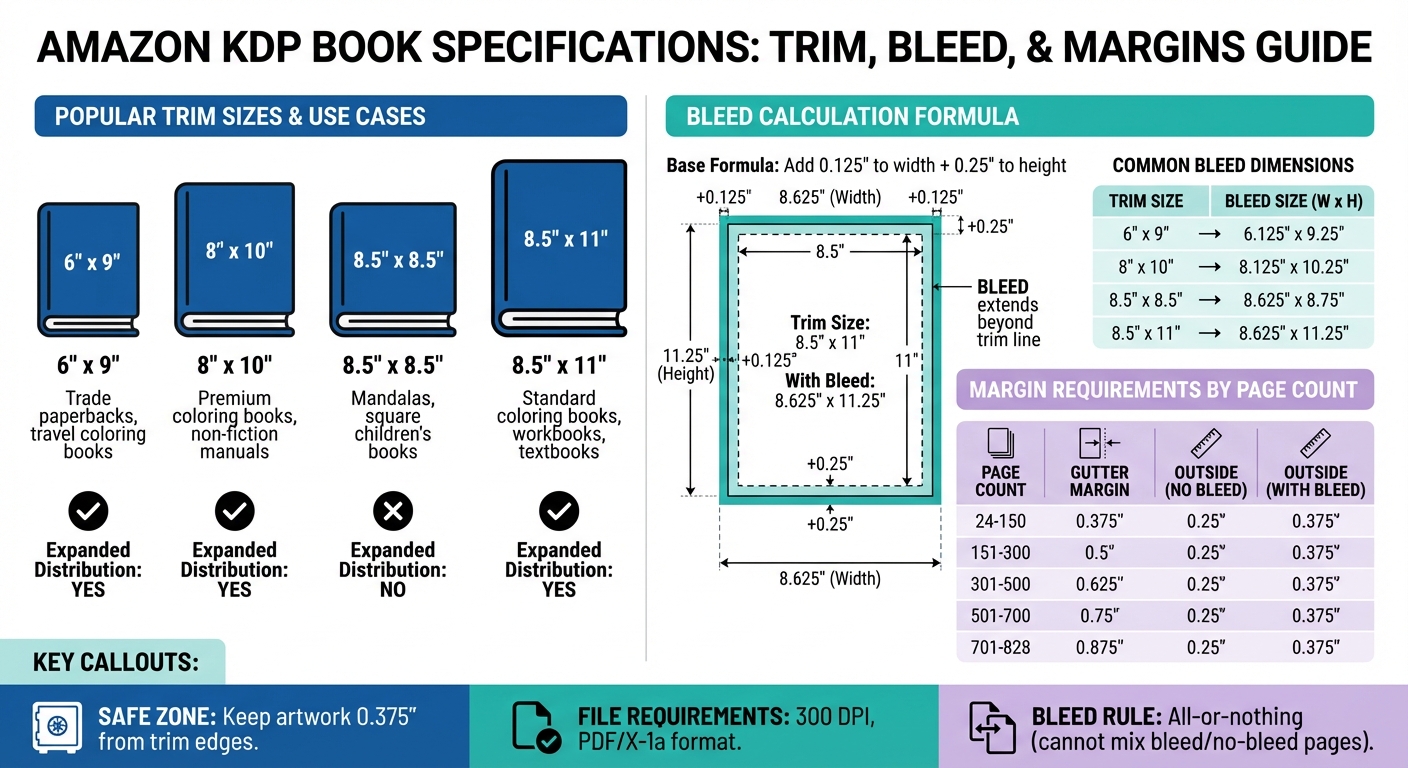
KDP Trim Sizes, Bleed Dimensions, and Margin Requirements Quick Reference Guide
How to Format Your Book on Amazon KDP. Bleed, Margin and Trim Size.
What Are KDP Trim Sizes?
Trim size refers to the final dimensions of your printed book, and it plays a big role in both its appearance and practicality. For instance, a 6″ x 9″ trim size often brings to mind trade paperbacks, while an 8.5″ x 11″ format is more fitting for workbooks or coloring books.
Your choice of trim size isn’t just about aesthetics - it also affects your book's page count, printing costs, and eligibility for Expanded Distribution. On KDP, trim sizes are categorized as "Regular" or "Large." Any book wider than 6.12 inches (155.5 mm) or taller than 9 inches (228.6 mm) falls into the "Large" category, which comes with a different pricing structure.
Standard KDP Trim Sizes
In the U.S., the go-to trim size is 6″ x 9″ (152.4 x 228.6 mm), a cost-effective option for trade paperbacks. On the other hand, larger formats are often preferred for coloring books to provide more space for illustrations.
| Trim Size | Common Use Case | Expanded Distribution (Black Ink/White Paper) |
|---|---|---|
| 6″ x 9″ | Trade paperbacks, travel coloring books | Yes |
| 8″ x 10″ | Premium coloring books, non-fiction manuals | Yes |
| 8.5″ x 8.5″ | Mandalas, square children’s books | No |
| 8.5″ x 11″ | Standard coloring books, workbooks, textbooks | Yes |
KDP also supports custom trim sizes within specific dimensions - widths ranging from 4″ to 8.5″ and heights from 6″ to 11.69″. Keep in mind that page count requirements vary. For example, an 8.5″ x 11″ paperback with black ink must have between 24 and 590 pages.
Familiarizing yourself with these standard sizes is a great starting point for creating a coloring book that meets your specific design needs.
Choosing the Right Trim Size for Coloring Books
When designing a coloring book, the trim size you pick can make or break its usability and visual appeal.
For most coloring books, the 8.5″ x 11″ format is the top choice. It offers a spacious canvas, ideal for detailed line art and intricate illustrations, making it a favorite for both adults and children. Another popular option is the 8.5″ x 8.5″ square format, which works especially well for symmetrical designs like mandalas and is perfect for sharing on social media.
If portability is a priority, the 6″ x 9″ size is a good fit for travel-friendly coloring books. However, this smaller format can limit the complexity of the artwork. For children’s coloring books, larger sizes like 8.5″ x 11″ or 8.5″ x 8.5″ provide enough room for coloring without feeling cramped.
Before settling on a size, double-check that it qualifies for Expanded Distribution if you plan to sell your book in bookstores or libraries. For example, while the 8.5″ x 11″ format is eligible with color ink, a size like 8.25″ x 8.25″ may not be.
The trim size you choose will also influence your bleed and margin settings, which we’ll cover in the next section.
What Is Bleed and Why It Matters
Bleed is the extra 0.125 inches (3.2 mm) added to the edges of your artwork beyond the trim line. This ensures that images extend fully to the edge of the page, even if there are slight cutting variations during printing. Without bleed, you risk having thin white borders appear along the edges of your coloring pages due to these minor shifts. For full-page illustrations, bleed ensures a clean, edge-to-edge print.
If you're publishing on KDP, bleed is mandatory for book covers but optional for interior pages. However, if even one page in your book has edge-to-edge artwork, bleed must be applied to every page. Mixing bleed and no-bleed pages in the same file isn’t allowed - it’s an all-or-nothing rule.
How to Calculate Bleed Dimensions
Getting your bleed dimensions right is essential for professional-quality prints. To calculate them, add 0.125 inches to the trim width and 0.25 inches to the trim height (0.125 inches for both the top and bottom). For instance, if your trim size is 8.5" x 11", the page size with bleed will be 8.625" x 11.25".
Here’s a quick reference table for common trim sizes and their corresponding bleed dimensions:
| Trim Size | Page Size with Bleed |
|---|---|
| 6" x 9" | 6.125" x 9.25" |
| 8" x 10" | 8.125" x 10.25" |
| 8.5" x 8.5" | 8.625" x 8.75" |
| 8.5" x 11" | 8.625" x 11.25" |
The inside margin, or gutter, doesn’t require bleed because it’s glued into the spine and isn’t trimmed. However, to prevent important content from being cut off, your outside margins should be at least 0.375 inches instead of the standard 0.25 inches when using bleed.
Bleed vs. No-Bleed Designs
Bleed designs are ideal for creating seamless, edge-to-edge artwork that looks polished and professional - something buyers of coloring books often expect. On the other hand, no-bleed designs keep all artwork within the margins, leaving a white border around the edges. While both approaches have their uses, bleed is usually the better choice for coloring books with full-page illustrations.
The downside to bleed designs is the extra effort they require. You’ll need to make precise calculations and follow design software print specifications closely. If you submit a file at the trim size without accounting for bleed, KDP may add an unwanted white border automatically. No-bleed designs are easier to prepare but restrict your creative space and may not look as polished, especially for illustration-heavy books.
For text-based books or journals, no-bleed designs work perfectly fine. But for coloring books, photo books, or any project with full-page graphics, bleed is essential. Keep in mind, once you opt for bleed, every page in your file - including blank ones - must adhere to the bleed dimensions. Up next, we’ll dive into margin and gutter specifications to help you fine-tune your KDP layouts.
Margin and Gutter Specifications for KDP Books
Margins and gutters are crucial for protecting your coloring book artwork during printing. They ensure that none of your designs are trimmed off or lost in the spine, where readers can't fully see them. Each page includes three outside margins (top, bottom, and side) and one inside margin (the gutter), which runs along the binding edge. These settings work in tandem with your trim size and bleed setup to guarantee a polished final product. Getting the measurements right is essential - KDP manually reviews submissions to catch margin issues that could lead to print rejections.
One key tip? Set your trim size first before adjusting margins, as margin dimensions depend on your total page count and whether or not you’re using bleed. Print books also use "mirror margins", meaning the left-hand and right-hand pages have different margin settings to accommodate the binding space. If your design software includes fields for both "inside margin" and "gutter", make sure to input the same value in both to avoid formatting problems.
Minimum Margin Requirements
KDP’s minimum margin requirements depend on whether your book uses bleed. For books without bleed, the top, bottom, and outside margins must be at least 0.25 inches (6.4 mm). However, if you're using bleed - which is recommended for full-page coloring book illustrations - those minimums increase to 0.375 inches (9.6 mm). The extra space ensures that nothing important gets cut off during trimming.
All critical artwork and text should stay within the "Safe Area", which is at least 0.25 inches from the trim edge. For intricate coloring book designs, consider using larger margins, such as 0.75 inches, to keep detailed elements safely away from the spine.
Gutter Sizes Based on Page Count
The gutter, or inside margin, needs to grow as your book gets thicker. A slim 50-page book requires far less binding space than a hefty 500-page one. KDP adjusts the gutter size based on page count, starting at 0.375 inches for books with 24 to 150 pages and increasing up to 0.875 inches for books with 701 to 828 pages. This ensures that content near the spine remains visible and intact.
Here’s a breakdown of how gutter sizes scale with page count:
| Page Count | Inside (Gutter) Margins | Outside Margins (No Bleed) | Outside Margins (With Bleed) |
|---|---|---|---|
| 24 to 150 pages | 0.375" (9.6 mm) | 0.25" (6.4 mm) | 0.375" (9.6 mm) |
| 151 to 300 pages | 0.5" (12.7 mm) | 0.25" (6.4 mm) | 0.375" (9.6 mm) |
| 301 to 500 pages | 0.625" (15.9 mm) | 0.25" (6.4 mm) | 0.375" (9.6 mm) |
| 501 to 700 pages | 0.75" (19.1 mm) | 0.25" (6.4 mm) | 0.375" (9.6 mm) |
| 701 to 828 pages | 0.875" (22.3 mm) | 0.25" (6.4 mm) | 0.375" (9.6 mm) |
For coloring books, narrow inside margins can cause detailed designs near the spine to be lost during binding. To avoid this, use KDP’s Paperback File Setup Calculator to determine the precise margin and spine measurements for your specific page count and paper type.
These guidelines are essential for creating print-ready files in your design software, ensuring your coloring book looks professional and polished.
sbb-itb-c02bfb4
Setting Up Trim Sizes and Bleed in Design Software
When preparing your book for KDP, configuring your design software to meet their exact specifications is crucial. This involves setting the correct page dimensions with bleed, using KDP's Cover Calculator for spine measurements, and exporting files in the appropriate format. Getting these details right is key to avoiding rejections and ensuring your book prints correctly.
Configuring Page Sizes
Start by creating a new document in your design software using your book's trim size (e.g., 8.5" x 11"). Then, apply KDP's standard bleed settings: 0.125" (3.2 mm) on the top, bottom, and outside edges. It's important not to apply bleed to the inside margin.
If you're using Adobe InDesign or Procreate, you can set these values in the "Bleed and Slug" section when creating your document. Keep in mind that if you enable the software's built-in bleed settings during export, you should avoid manually adding bleed to your page dimensions - this can lead to incorrect file sizes.
| Trim Size | Page Size with Bleed |
|---|---|
| 5" x 8" | 5.125" x 8.25" |
After setting your page size, move on to verifying your cover dimensions using KDP's Cover Calculator.
Using KDP's Cover Calculator for Accuracy
The KDP Cover Calculator is an essential tool for determining precise cover dimensions. You'll need to input details such as binding type (paperback or hardcover), interior type (black & white or color), paper type (white or cream), page turn direction, and page count. These inputs will generate exact measurements for the full cover width, height, and spine width. Keep in mind that cream paper results in a thicker spine compared to white paper for the same page count due to differences in paper density.
Once you have the dimensions, download the PNG or PDF template provided by the calculator. Overlay this template in your design software - it will guide you in marking safe zones, spine areas, and barcode placement. This step ensures your spine text and artwork are perfectly aligned. However, avoid finalizing your cover design until your interior manuscript is complete, as even small changes in page count can affect the spine width and potentially cause file rejections.
Exporting Print-Ready Files
With your page and cover dimensions in place, export your files carefully to meet KDP's requirements. Export your manuscript as a single-page PDF at 300 DPI, using the PDF/X-1a format, which KDP prefers. Make sure to enable "document bleed settings" in your export options to include the 0.125" bleed you configured earlier. Additionally, embed all fonts (not just subsets) and flatten transparencies to avoid any export issues.
Avoid including crop marks, trim marks, or registration marks in your submitted files, as KDP's system may reject them. Also, ensure your manuscript file size stays under 650MB and that all images are at least 300 DPI. For your cover, use the same PDF/X-1a format with embedded fonts and the exact dimensions provided by the Cover Calculator. Following these steps will help you deliver print-ready files without any hiccups.
Best Practices for Coloring Book Trim Sizes and Bleed
Maximizing Artwork Space
Choosing an 8.5" x 11" trim size offers plenty of room for intricate designs and detailed patterns, making it ideal for coloring books. On KDP, any book larger than 6.12" x 9" is classified as "large trim", which can increase printing costs. However, the extra space can significantly enhance the coloring experience - a key factor in customer satisfaction and positive reviews. To avoid trimming issues, ensure all design elements stay within the designated margins.
Keeping Content Within Safe Zones
Even if you're using bleed to extend artwork to the edges of the page, it's critical to keep essential elements within the safe zone. For books with bleed, detailed line art and text should be positioned at least 0.375" (9.6 mm) inside the trim line. Placing intricate patterns or fine details too close to the edge risks them being cut off during trimming, which can ruin the final product.
Make sure to maintain proper gutter margins to prevent artwork from getting lost in the binding. Use a minimum line thickness of 0.75 point (0.01" or 0.3 mm) to ensure lines print clearly without appearing faint or broken. Additionally, using precise export tools can help simplify your workflow and reduce errors.
Using Coloring Book Engine for KDP-Ready Exports

The Coloring Book Engine simplifies the entire process by automatically setting up trim sizes and bleed, eliminating the need for manual calculations. It generates KDP-ready PDFs (e.g., 8.625" x 11.25" for an 8.5" x 11" book) with correct bleed margins.
This standalone desktop application follows a BYOK (Bring Your Own Key) model, giving you full control over your workflow and AI costs without requiring subscriptions or incurring unexpected usage fees. The tool exports files at 300 DPI, with embedded fonts and flattened transparencies, ensuring they meet all of KDP's technical requirements seamlessly.
Conclusion
Mastering KDP specifications is crucial for producing professional, reader-friendly coloring books. Details like trim sizes, bleed, and margins aren't just technicalities - they're the foundation for a polished product. For example, incorrect bleed settings can leave unsightly white borders, while improper margins risk cutting off your artwork. On top of that, technical errors can lead to manuscript rejections when uploading to KDP.
For an 8.5" x 11" coloring book that includes bleed, you’ll need to set your document size to 8.625" x 11.25". This accounts for an additional 0.125" (3.2 mm) on the top, bottom, and outer edges. Also, remember to adjust your margins based on the total page count. Skipping these steps can result in costly reprints or file rejections.
To meet KDP's technical requirements, all files should be exported at 300 DPI, with flattened transparencies and embedded fonts. Setting up these specifications manually can be tricky and may lead to errors that delay publication.
Tools like Coloring Book Engine simplify this process by automatically configuring trim sizes and bleed for KDP-ready PDF exports. With no subscriptions or hidden fees, this tool ensures your files are formatted correctly, freeing you up to focus on your creative work.
Whether you're tackling your first coloring book or your fiftieth, treating trim sizes and bleed as non-negotiable technical requirements can save you time, money, and a lot of headaches.
FAQs
What are the biggest mistakes to avoid when setting up KDP trim sizes and bleed?
The most frequent issues with KDP trim sizes and bleed stem from using incorrect dimensions, mismatched settings, or improper content placement. Let’s break it down:
- Incorrect bleed dimensions: KDP requires a bleed of 0.125 inches on all outer edges. This means any background artwork should extend into this area to avoid unwanted white borders after trimming. To keep your design safe, ensure all important text and artwork are positioned at least 0.25 inches inside the trim line.
- Mismatched bleed settings: If your file includes bleed but you select "No Bleed" in KDP - or the other way around - your pages might be trimmed incorrectly or even rejected. Always verify that your file's dimensions align with the bleed settings you choose on KDP.
- Content placed too close to the trim or spine: Placing key elements too close to the trim line or spine can cause parts of your artwork to be cropped or result in thin white strips. To avoid this, maintain a 0.25-inch safe margin around all critical content.
By carefully reviewing your bleed settings, margins, and trim sizes, you can prevent file rejections and achieve polished, professional-looking prints for your coloring books.
How does the trim size you choose impact printing costs on KDP?
The trim size of your book plays a big role in determining printing costs on KDP. Larger trim sizes usually require more paper and can increase the page count, which means higher printing costs per copy. In contrast, smaller, more standard sizes use less material, helping to keep costs down.
When planning your book's design, it's important to strike a balance between your creative goals and the budget. This way, you can produce a book that looks great while staying cost-effective.
What is bleed, and why is it important for KDP coloring books?
Bleed is the extra margin that extends beyond the trim size of a page. It allows your artwork to go all the way to the edge once the page is printed and trimmed. This prevents any unwanted white borders, giving your coloring book a clean, professional finish.
For KDP coloring books, adding bleed is crucial. It ensures your designs stay intact and look as planned, even if there are small shifts during the trimming process. Including bleed not only keeps your designs consistent but also boosts the overall presentation of your book.