How to Batch Process Coloring Pages in Under 30 Minutes
How to Batch Process Coloring Pages in Under 30 Minutes
Batch processing coloring pages can save you hours of manual work. By using tools like Coloring Book Engine, you can generate 30–50 professional, print-ready pages in less than 30 minutes. Here's how: Following a 5-step publishing plan ensures consistency.
- Setup: Install Coloring Book Engine on a system with at least 16GB RAM and a dedicated GPU for faster processing. Choose between a $99 Personal License or a $299 Organization License.
- Batch Mode: Load prompts or images, set dimensions to 8.5" x 11", and adjust style settings for consistent designs.
- Processing: Generate 25–50 pages in 15–20 minutes using your local GPU and API key for private, cost-controlled production.
- Review: Check for artifacts or uneven lines. Adjust contrast and line thickness for your target audience.
- Export: Configure KDPcompliant settings (300 DPI vs 72 DPI, PDF format, proper margins) and export your pages as a single file.
With the right setup and prompts, creating high-quality coloring books becomes a fast and efficient process.
Setting Up Coloring Book Engine
Hardware and Software Requirements
The Coloring Book Engine relies on your local GPU to handle the heavy lifting of batch processing. Since generative AI for image creation demands significant memory, this tool works best with dedicated GPUs. You'll need a system running Windows 10/11 (64-bit) or macOS 12 or newer, along with at least 16GB of RAM (though 24GB or more is recommended for handling larger or high-resolution batches). If you're planning to generate 30–50 pages in one go, having enough RAM is essential to avoid slowdowns or crashes during the process.
The software comes with two licensing options:
- Personal License: $99, designed for individual creators, allowing up to 3 device activations.
- Organization License: $299, tailored for teams or studios, supporting up to 5 licensed users.
You'll need to bring your own API key to get started.
Now, let’s dive into how to load your prompts and images for batch processing.
Loading Prompts and Images
After installation, navigate to the "Batch Mode" (also called "Bulk Generate") tab to begin queuing your prompts or images. You have two options:
- Paste a list of text prompts, with each prompt on a separate line.
- Upload existing images in formats such as JPG, JPEG, PNG, or WEBP. These will be converted into clean line art, perfect for printing.
Before running the batch, make sure to set the aspect ratio to 8.5:11, which aligns with KDP’s letter size requirements. You can also adjust style and detail settings to ensure a consistent look across all pages in your book. This step helps maintain a polished and cohesive visual style throughout your project.
How to Batch Process Coloring Pages
Setting Up Your Batch Queue
To get started, head to the Batch Mode tab and enter your prompts, placing each one on a new line. If you’re stuck on ideas, the AI Ideas generator can quickly suggest prompts tailored to specific niches. Make sure to set the 8.5x11" print specs and choose an art style - like bold outlines or fine sketches - that will keep the design consistent across all pages.
For print-ready line art, include technical terms in your prompts such as "clean line art", "high contrast", and "no shading." These keywords help the AI produce sharp, clear strokes ideal for coloring books. You can also tweak line quality settings with parameters like "no grayscale" or "vector-like strokes" to avoid issues like broken lines or stray pixels.
Once your queue is set, you’re ready to start the batch process.
Starting the Batch Process
With your queue configured, hit generate to begin. The Coloring Book Engine uses your local GPU for processing, giving you control over costs with the BYOK (Bring Your Own Key) model. On average, the system can produce 25–50 pages in about 15–20 minutes, depending on your hardware and the complexity of your prompts. You can monitor progress in the Creations Gallery or tackle other tasks while the batch runs in the background.
Since you're using your own API key, the images you generate are private and remain solely under your control. No data is shared with external servers, ensuring your designs stay secure, and your expenses are predictable.
Reviewing and Adjusting Pages
Once processing is complete, review your pages thoroughly. Zoom in to 100% to check for stray pixels or artifacts. Sort through the output to pick out the best pages and mark any that need tweaking or regeneration. If you notice uneven line weights or style inconsistencies, use the palette matching tools to create colored previews and see how the designs look when filled in.
You can also adjust contrast to darken lines or refine the level of detail based on your audience. For instance, thicker lines are great for kids’ books, while more intricate designs suit adult coloring book niches. Before exporting, standardize stroke widths across all pages to ensure a polished, professional result that stays true to the art style you established during setup.
Exporting Pages for KDP
KDP Export Settings
Once you've selected the pages for publishing, it's time to configure your export settings for KDP. The platform requires manuscripts in PDF format, with a preference for PDF/X-1a. To ensure high-quality printing, all images must have a resolution of 300 DPI.
For coloring books, set the trim size to KDP's standard 8.5" x 11". If your designs extend to the page edges, enable bleed and adjust the PDF dimensions to 8.625" x 11.25", adding an extra 0.125" to the top, bottom, and outside edges. Make sure all essential artwork is at least 0.25" away from the trim lines to prevent any part of the design from being cut off during printing.
Inside (gutter) margins should be adjusted based on the total page count. For books with 24 to 150 pages, use a minimum inside margin of 0.375" (9.6 mm). For books with 151 to 300 pages, increase this margin to 0.5" (12.7 mm). Additionally, embed all fonts and flatten transparency before exporting the file. Avoid including crop marks, trim marks, or registration marks in your PDF.
For coloring books, place your designs on right-hand (odd-numbered) pages and leave the reverse sides blank. This setup prevents ink or marker bleed-through onto the next design. Ensure the interior uses grayscale or black ink on white paper, and keep line thickness at a minimum of 0.75 point or 0.01" (0.3 mm) for clear and sharp printing.
Once these settings are finalized, you can proceed to export your pages in batch mode.
Batch Export Options
The batch export feature in Coloring Book Engine streamlines the process by allowing you to handle multiple pages at once while maintaining consistent quality. Before starting the export, confirm that your settings - 300 DPI resolution, 8.5" x 11" aspect ratio, and uniform line thickness - are locked in. The tool also takes care of bleed and gutter margins, ensuring no critical artwork is lost during KDP's trimming process.
Export your interior as a single PDF file rather than individual images. The system will automatically assemble the pages in the correct order and insert blank even-numbered pages if you've opted for single-sided printing. Before uploading your file to KDP, review the PDF at 100% zoom to ensure there are no stray pixels or inconsistencies in line weights that may have been overlooked.
sbb-itb-c02bfb4
Tips for Faster Batch Processing
Coloring Book Engine Processing Times by GPU and Batch Size
Preparing Your Prompts
Getting your prompts ready ahead of time can save you a lot of effort. Create a simple text file with 30–50 themed prompts, writing one per line. This way, you can paste the entire list in one go instead of typing each prompt individually. It’s a small step that makes a big difference.
For consistency, use a template that includes details like subject, style, thick black outlines, white background, and clean linework. Add technical parameters such as --ar 8.5:11 to match standard paper dimensions and --no colors, textures, shading to avoid extra elements that might need manual cleanup. Keeping the core style phrases the same across all prompts in a batch helps create a uniform look for your book and speeds up the entire process.
Using Your GPU Effectively
The speed of your batch processing largely depends on your hardware. Since Coloring Book Engine runs locally and relies on your GPU for image generation, your GPU’s performance directly affects how quickly you can complete a batch. A standard GPU can generate a 50-page book in about 15–20 minutes, while a high-performance GPU can process 100 images in as little as 15 seconds.
If large batches are part of your routine and your current GPU feels sluggish, upgrading to a more powerful model can drastically reduce production time. Before upgrading, make sure your new GPU is compatible with your system and that your drivers are up to date.
Once you’ve optimized your prompts and GPU setup, fine-tune your batch size settings to further improve efficiency.
Processing Time by Batch Size
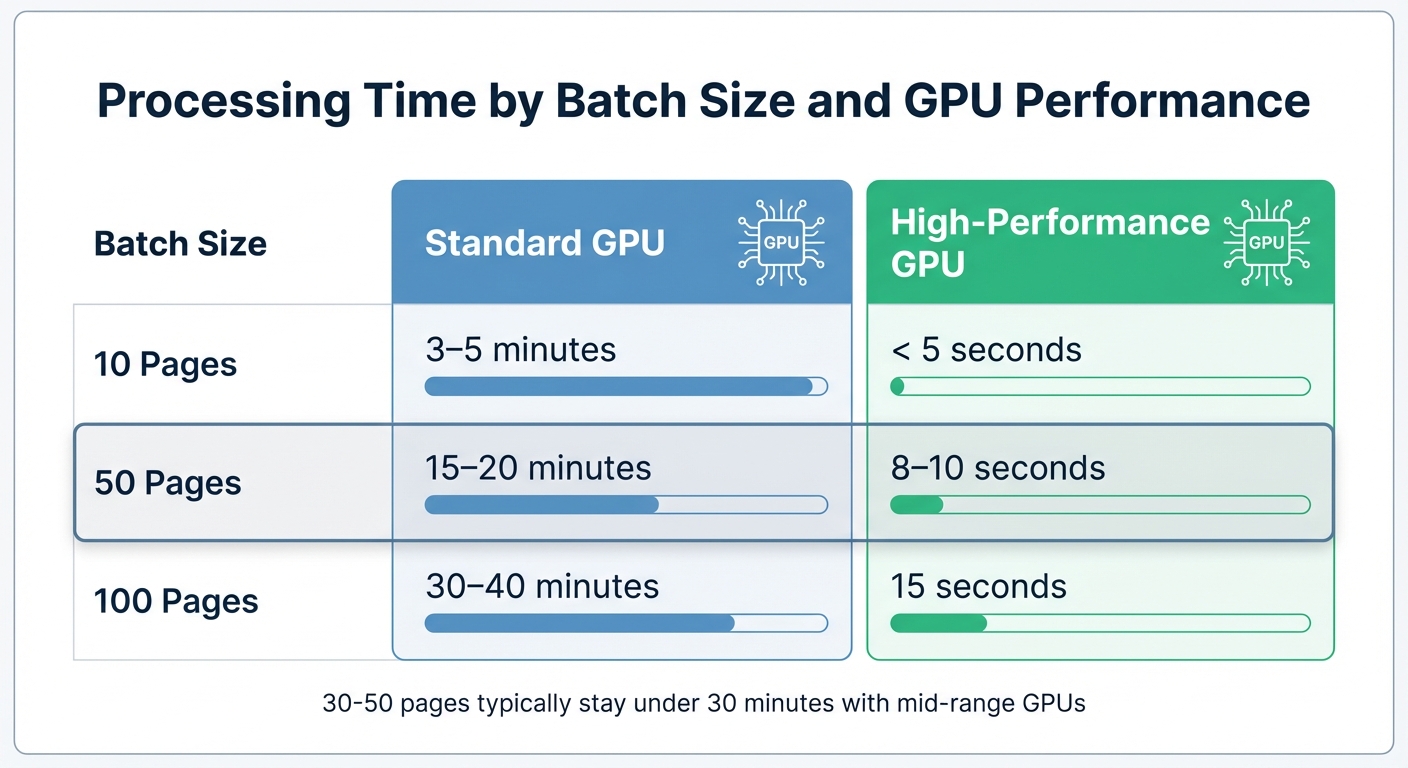
Batch size plays a crucial role in processing time, and understanding its impact can help you plan better. Here’s a quick breakdown of estimated generation times based on different batch sizes and GPU performance levels:
| Batch Size | Standard GPU | High-Performance GPU |
|---|---|---|
| 10 Pages | 3–5 minutes | < 5 seconds |
| 50 Pages | 15–20 minutes | 8–10 seconds |
| 100 Pages | 30–40 minutes | 15 seconds |
For mid-range GPUs, projects with 30–50 pages usually stay under 30 minutes. If you’re handling larger workloads or producing multiple books daily, the time saved through parallel processing can add up quickly.
Conclusion
Creating coloring pages in batches can be both simple and time-efficient. With a well-organized setup and carefully crafted prompts, it’s possible to produce 30–50 high-quality pages in less than 30 minutes. The secret lies in maintaining a streamlined process - from generating designs to reviewing quality and exporting the final pages.
Using a reliable GPU significantly reduces processing time and ensures consistency across designs. Pair this with precise prompt instructions - such as specifying "black and white line art, high contrast, and no shading" - to produce clean, print-ready pages that align with KDP's technical standards, minimizing the need for manual adjustments.
The Coloring Book Engine's BYOK model offers an added advantage by keeping costs predictable and safeguarding data privacy. With a one-time $99 Personal license, you gain lifetime access, commercial use rights, and activations on up to three devices. This makes it a cost-effective solution for scaling your production efforts while maintaining quality.
"AI speeds up bulk page generation, but crisp, consistent line art and careful layout planning make printable books sellable." - Billie Lucas, Author
FAQs
What kind of hardware setup is best for efficient batch processing?
For the best performance in batch processing, consider investing in a GPU-focused workstation. Look for a system that includes a top-tier NVIDIA RTX 40-series GPU (or multiple GPUs if you're tackling demanding workloads), at least 64 GB of RAM, and a powerful, modern CPU to manage pre-processing tasks with ease.
This setup not only ensures seamless operation but also drastically reduces processing times, particularly when using AI-driven tools or managing large-scale projects.
How can I make sure my coloring pages meet KDP's publishing requirements?
To ensure your coloring pages meet KDP's publishing standards, export them as a print-ready PDF with these key settings:
- Resolution: Use 300 dpi to guarantee sharp, high-quality prints.
- Color Mode: Stick to CMYK for precise and reliable print colors.
- Trim Size: Match the exact dimensions you plan to use on KDP, such as 8.5 × 11 inches.
- Bleed: Add a 0.125-inch bleed so designs reach the edges of the page without gaps.
- Margins: Include safe margins to keep important elements from being trimmed.
- Fonts: Ensure all fonts are embedded in the file.
- Page Layout: Decide on single-sided or double-sided pages based on your project’s design.
With these steps, your coloring pages will be perfectly prepared for publishing on KDP.
What are the advantages of using the BYOK model with Coloring Book Engine?
At the moment, there’s no detailed information about the advantages of using the BYOK (Bring-Your-Own-Key) model with Coloring Book Engine. For accurate and up-to-date details about this feature, it’s best to contact Coloring Book Engine’s support team directly.